






High memory usage in Windows 11 is one of the most common reasons a fast PC suddenly feels slow, laggy, and frozen. If Task Manager shows your RAM sitting at 85 to 100 percent while you are only browsing or typing, something is eating your memory. This guide shows you how to fix high memory usage in Windows 11 with 12 proven, step-by-step solutions, from quick wins to advanced tweaks, so you can free up RAM and make your computer fast again.
What Causes High Memory Usage in Windows 11?
Before you fix high RAM usage in Windows 11, it helps to know why it happens. The most common causes are:
- Too many startup apps that launch with Windows and stay in the background.
- Browser tabs and extensions, especially in Chrome and Edge, which can use several gigabytes alone.
- Memory leaks in apps, drivers, or Windows services that never release RAM after use.
- Malware or crypto miners quietly running in the background.
- Outdated Windows or driver versions with known memory bugs.
- Too little physical RAM, since 8 GB is now the practical minimum for Windows 11 and 16 GB is far more comfortable.
- Visual effects, widgets, and background services that quietly add to memory load.
Is High RAM Usage Always a Problem?
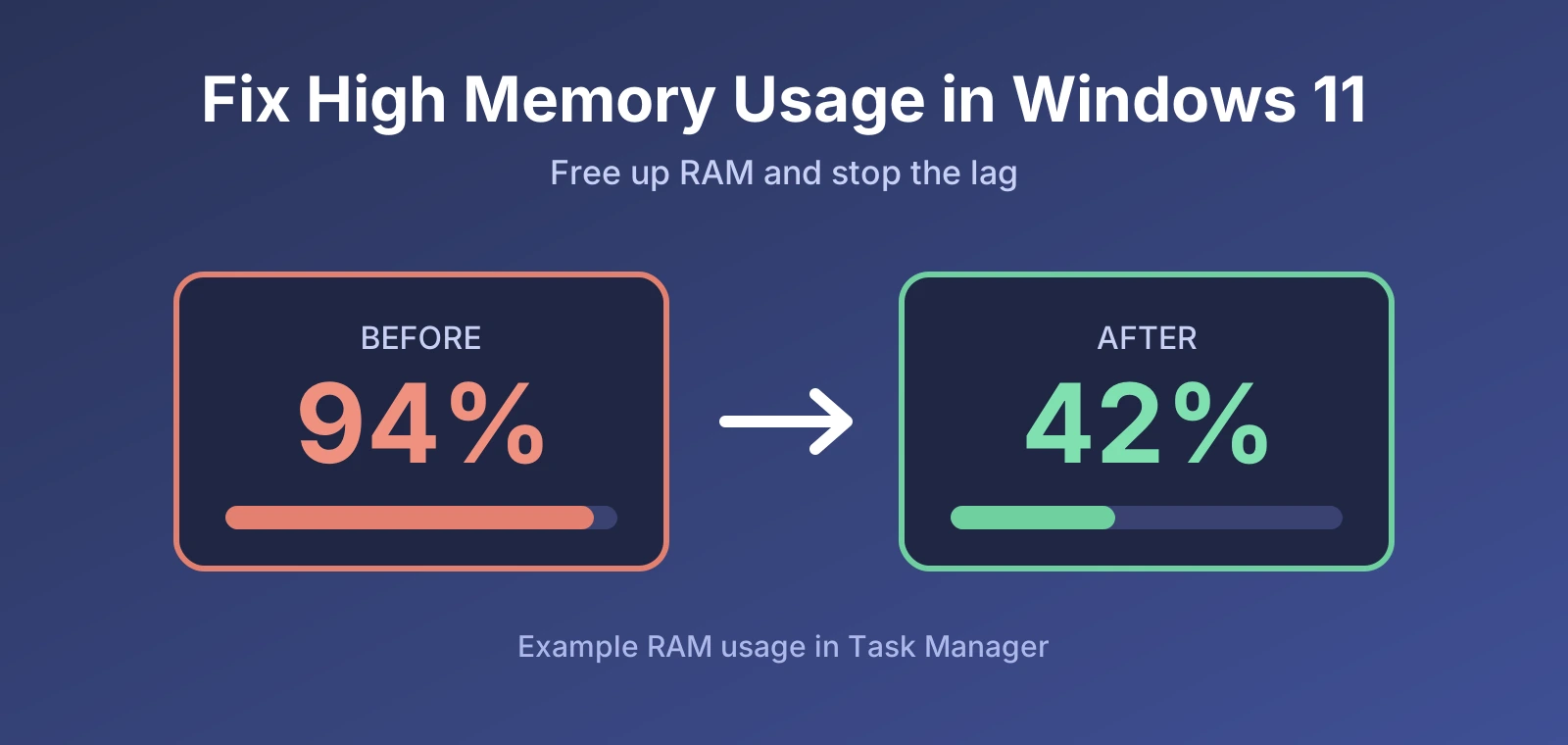
Not always. Windows 11 is designed to use free RAM as cache so apps open faster. A fresh Windows 11 install commonly sits around 3 to 4 GB in use at idle, and a high percentage on its own is not an issue if your PC stays smooth. It becomes a real problem when your system lags, apps freeze, or Windows warns you that memory is low.
1. Restart Your PC (Not Shut Down)
It sounds basic, but a restart is the fastest way to clear memory leaks and stuck processes. Windows 11 uses Fast Startup, so a normal shutdown does not fully clear the kernel session. Click Start, then Power, then Restart, so memory is reset completely.
2. Find Memory-Hungry Apps in Task Manager
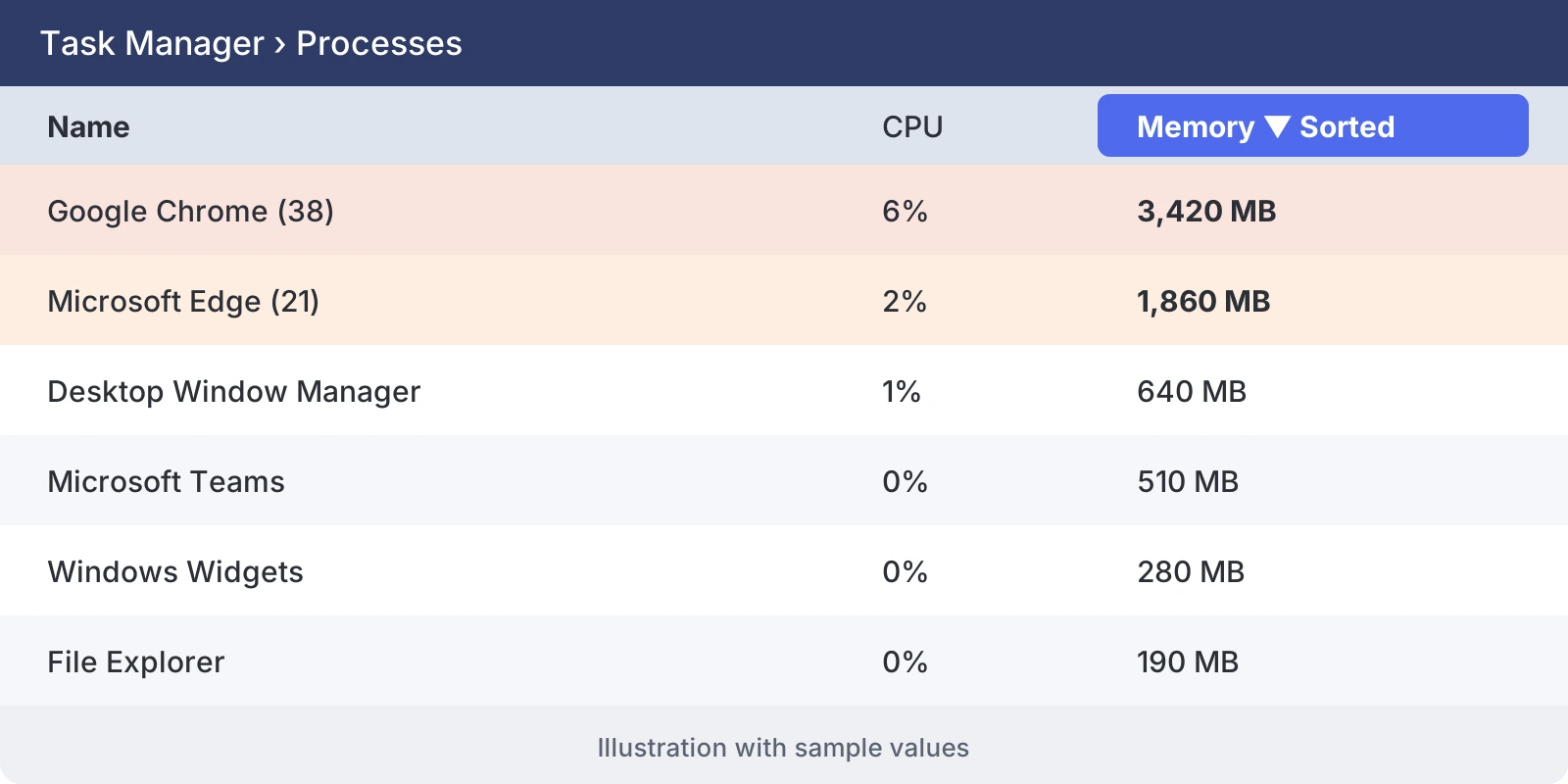
Task Manager shows you exactly which process is causing high memory usage in Windows 11.
- Press
Ctrl + Shift + Escto open Task Manager. - Click the Processes tab.
- Click the Memory column header to sort from highest to lowest.
- Right-click any app using too much RAM and choose End task.
Only end apps you recognise. Ending core Windows processes can crash your system.
3. Disable Startup Apps in Windows 11
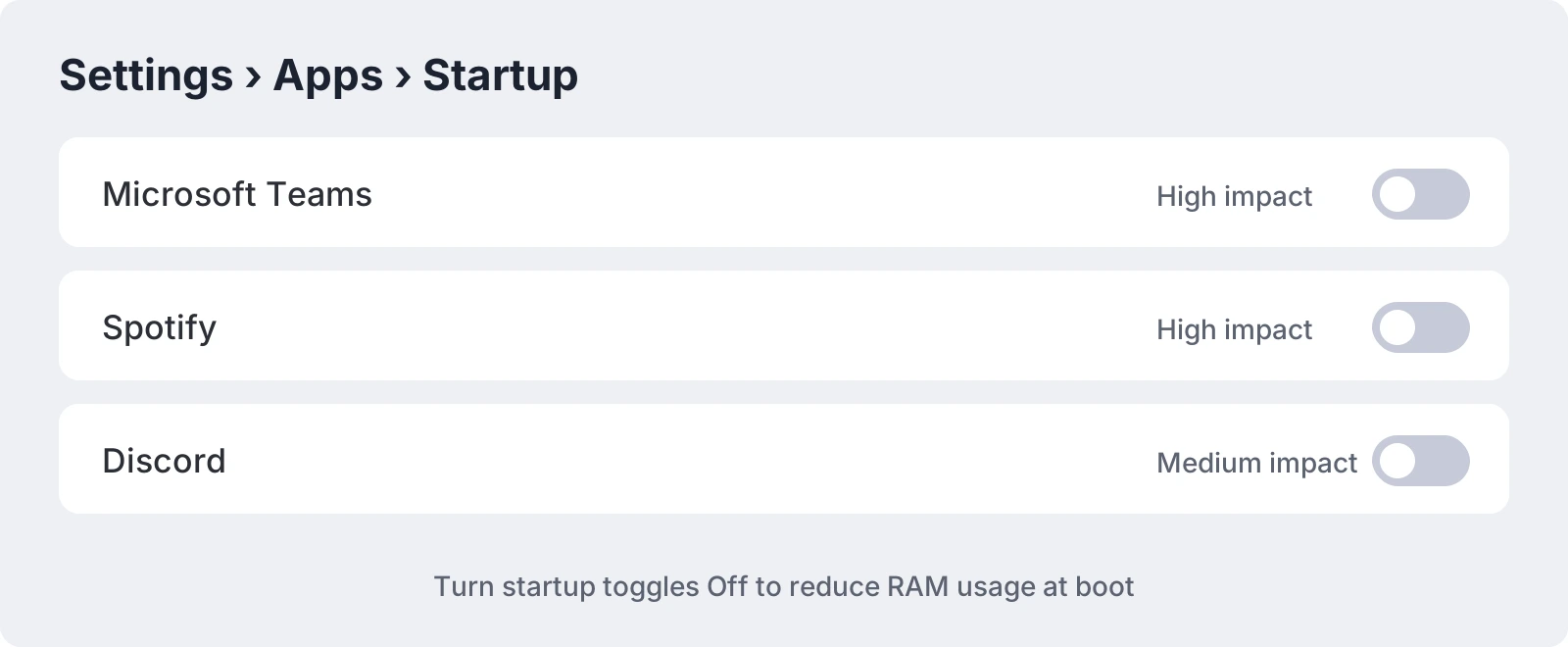
Startup programs are a top cause of high memory usage right after boot. To turn them off:
- Open Settings and go to Apps, then Startup.
- Switch Off any app you do not need at boot, such as chat tools, game launchers, and updaters.
- You can also use Task Manager, open the Startup apps tab, right-click an app, and choose Disable.
4. Stop Background Apps and Turn Off Widgets
Many apps keep running even when you are not using them. Go to Settings, then Apps, then Installed apps, click the three-dot menu next to an app, open Advanced options, and set background app permissions to Never where available.
Also turn off Widgets: right-click the taskbar, choose Taskbar settings, and switch Widgets off. This saves a small but steady amount of RAM.
5. Reduce Browser Memory Usage
Your browser is often the biggest RAM hog on Windows 11. Close tabs you are not using, remove heavy extensions, and turn on the built-in memory saver features:
- Microsoft Edge: Settings, then System and performance, then turn on Efficiency mode and Sleeping tabs.
- Google Chrome: Settings, then Performance, then turn on Memory Saver.
6. Scan for Malware and Viruses
Malware, adware, and hidden crypto miners can cause high memory usage in Windows 11 without any visible app. Open Windows Security, go to Virus & threat protection, and run a Full scan. For stubborn threats, choose Scan options and run Microsoft Defender Offline scan.
7. Update Windows 11 and Your Drivers
Microsoft regularly patches memory leaks through updates. Open Settings, then Windows Update, and click Check for updates. Install optional driver updates too, especially for your graphics card, network adapter, and chipset, since a buggy driver can quietly leak RAM.
8. Increase Virtual Memory (Page File)
Virtual memory uses part of your drive as extra RAM when physical memory runs low. Increasing it can stop crashes and low memory warnings, though it is slower than real RAM.
- Press
Windows + R, typesysdm.cpl, and press Enter. - Open the Advanced tab and click Settings under Performance.
- Open the Advanced tab again and click Change under Virtual memory.
- Untick Automatically manage paging file size for all drives.
- Select your system drive, choose Custom size, and enter the values below.
- Click Set, then OK, and restart your PC.
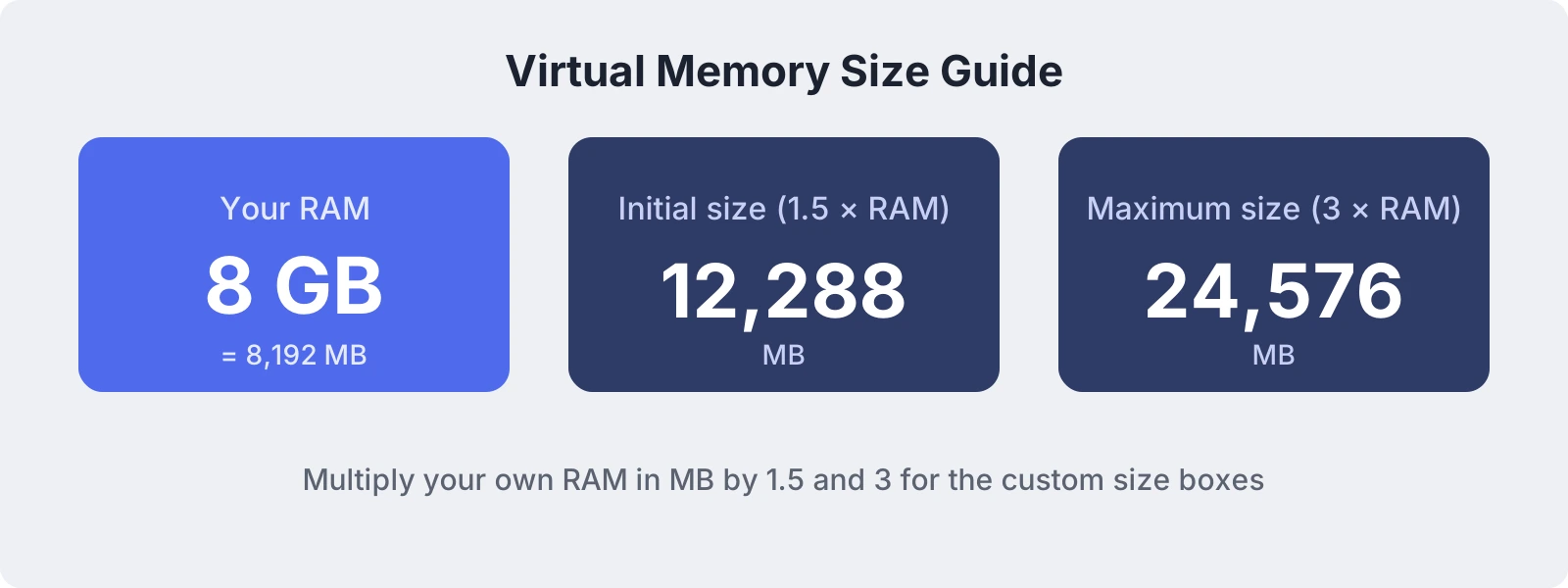
| Installed RAM | Initial size (MB) | Maximum size (MB) |
|---|---|---|
| 4 GB | 6,144 | 12,288 |
| 8 GB | 12,288 | 24,576 |
| 16 GB | 24,576 | 49,152 |
9. Turn Off Visual Effects and Transparency
Animations and transparency look nice, but they use memory, especially on older PCs. Go to Settings, then Accessibility, then Visual effects, and turn off Transparency effects and Animation effects. For maximum savings, open sysdm.cpl, go to Advanced, then Performance Settings, and choose Adjust for best performance.
10. Run the Windows Memory Diagnostic Tool
Faulty RAM can make Windows 11 behave like it has a memory problem. Press Windows + R, type mdsched.exe, and choose Restart now and check for problems. Windows will test your RAM modules on reboot and show the result after you sign in. If it reports errors, a RAM stick may need replacing.
11. Repair System Files with SFC and DISM
Corrupted system files can trigger memory leaks. Open Terminal (Admin) and run these commands one after another:
sfc /scannowDISM /Online /Cleanup-Image /RestoreHealth
Restart your PC when both finish.
12. Advanced Fixes for Stubborn High RAM Usage
Disable Fast Startup
Open Control Panel, then Power Options, then Choose what the power buttons do. Click Change settings that are currently unavailable and untick Turn on fast startup. This gives you a clean memory state at every boot.
Check Resource Monitor for Memory Leaks
Press Windows + R, type resmon, and open the Memory tab. Watch the Commit and Working Set columns. A process whose memory keeps climbing without dropping is likely leaking, so update, reinstall, or remove that app.
Understand “System and Compressed Memory”
This process is normal. Windows 11 compresses idle data in RAM to avoid slow disk use. It becomes a concern only if it stays very high alongside low available memory, in which case follow the steps above or add more RAM.
Should You Upgrade Your RAM?
If you have tried every fix and still face high memory usage in Windows 11, you may simply need more RAM. With modern browsers, chat apps, and AI tools running together, 8 GB fills up quickly. Upgrading to 16 GB is the single most effective long-term fix for most users, and 32 GB suits heavy multitasking, editing, and gaming. Check whether your laptop has a free RAM slot or soldered memory before you buy.
Tips to Prevent High Memory Usage in Windows 11
- Restart your PC at least once a week.
- Keep Windows, apps, and drivers updated.
- Uninstall programs you no longer use.
- Limit startup apps and browser extensions.
- Keep a good antivirus active and avoid pirated software.
- Leave at least 15 percent free space on your system drive so virtual memory works properly.
Frequently Asked Questions
Why is my RAM usage so high in Windows 11 when I am not running anything?
Background services, startup apps, browser processes, Widgets, and system cache can all use memory at idle. Windows also uses free RAM as cache, which is normal. Check Task Manager sorted by Memory to find the actual cause.
How much RAM does Windows 11 use at idle?
Most clean installs use roughly 3 to 4 GB at idle, though it varies with drivers, startup apps, and installed software.
How do I clear RAM cache in Windows 11?
The easiest way is to restart your PC. You can also close unused apps and end heavy processes in Task Manager. Windows manages its cache automatically.
Is 8 GB RAM enough for Windows 11?
It is enough for basic use, but heavy browsing, multitasking, and gaming push it to the limit. 16 GB is the comfortable standard today.
Can high memory usage damage my PC?
No, high RAM usage will not damage hardware. It does slow down your system and can cause freezes or crashes if memory runs out.
Final Thoughts
Fixing high memory usage in Windows 11 usually takes only a few minutes. Start with a restart, check Task Manager, trim your startup apps, scan for malware, and keep Windows updated. If the problem persists, increase virtual memory, repair system files, or upgrade your RAM. Follow these steps and your Windows 11 PC will run faster, smoother, and more reliably.
Read more : Microsoft AI Patent Can Rewrite Live Speech and Faces